Your tabs on a canvas
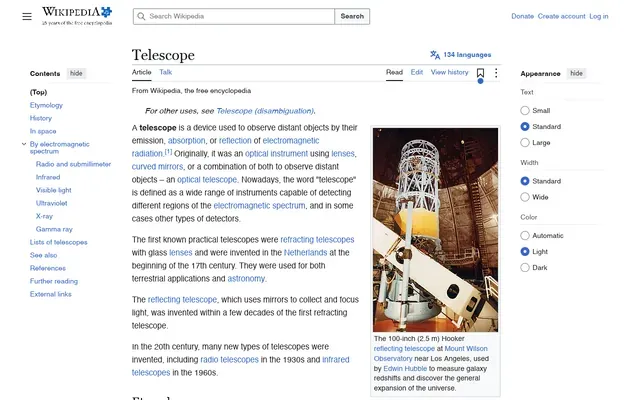
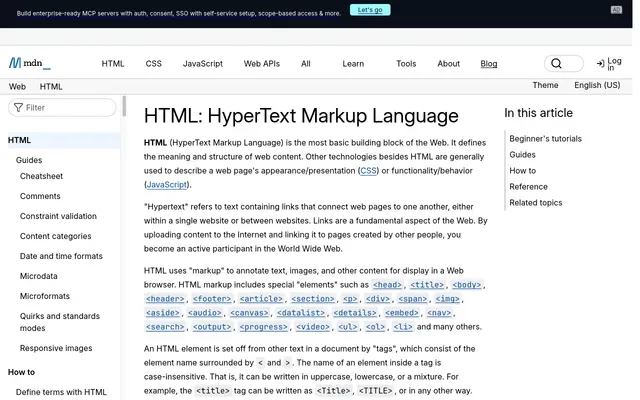
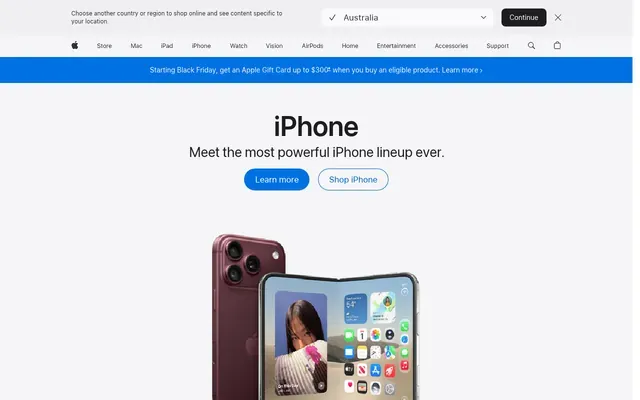
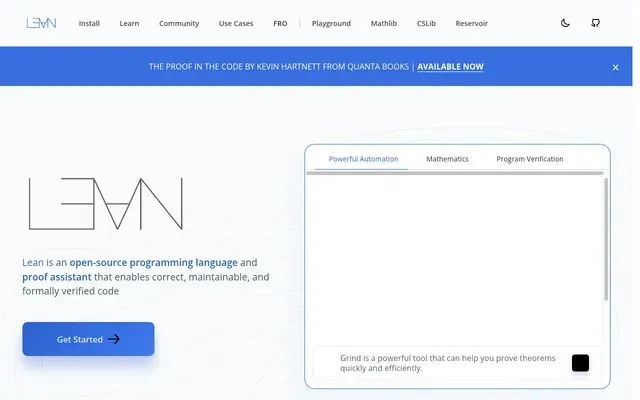
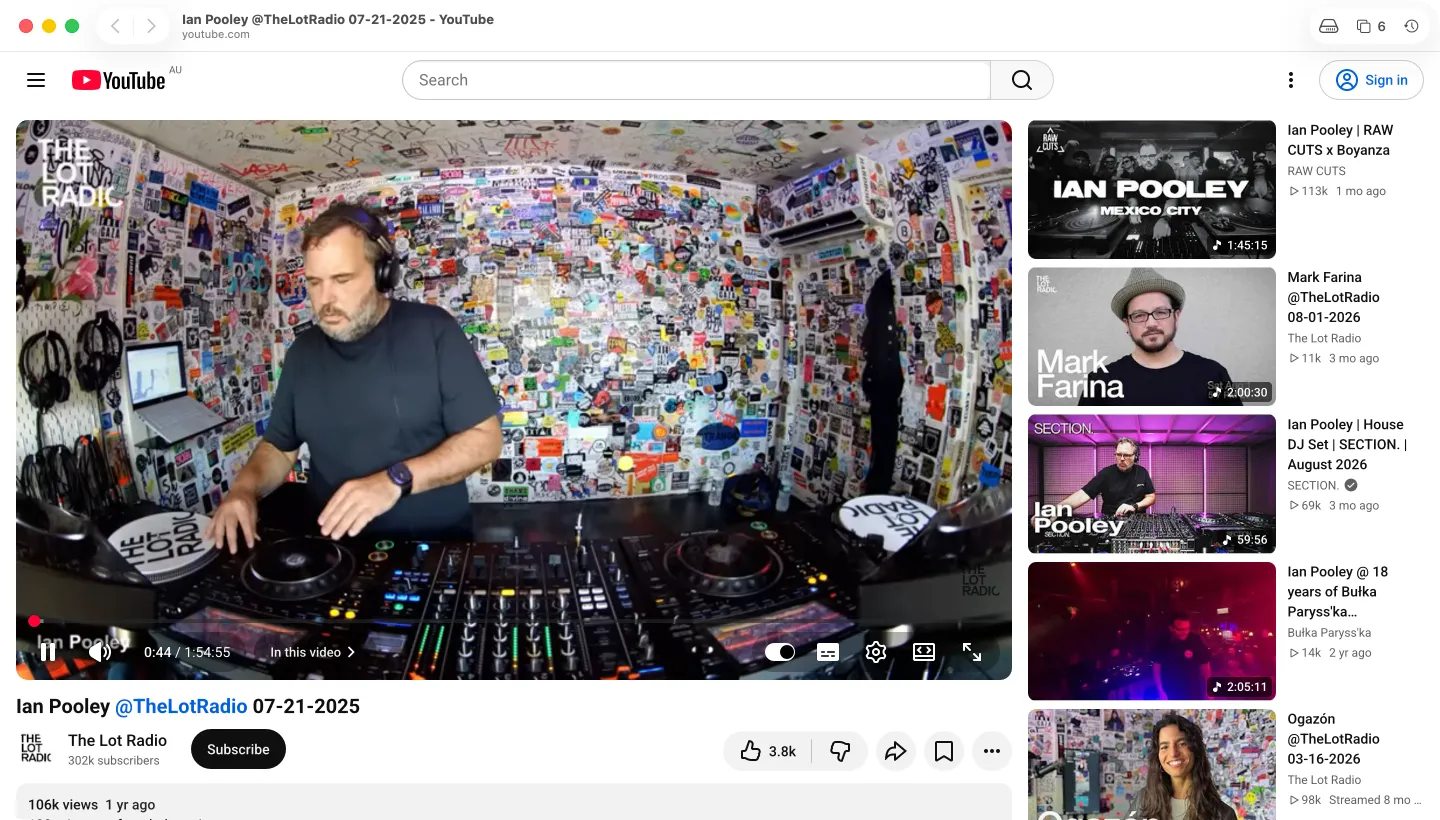
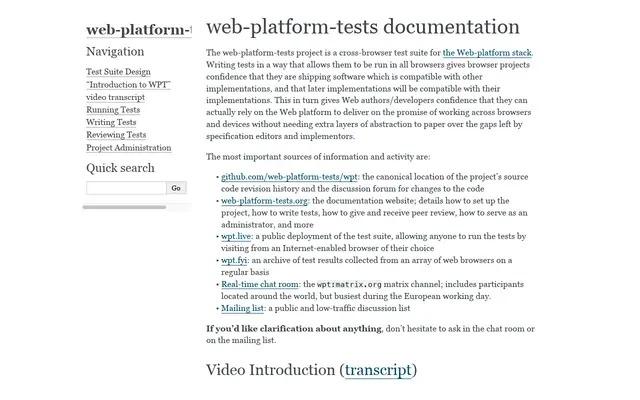
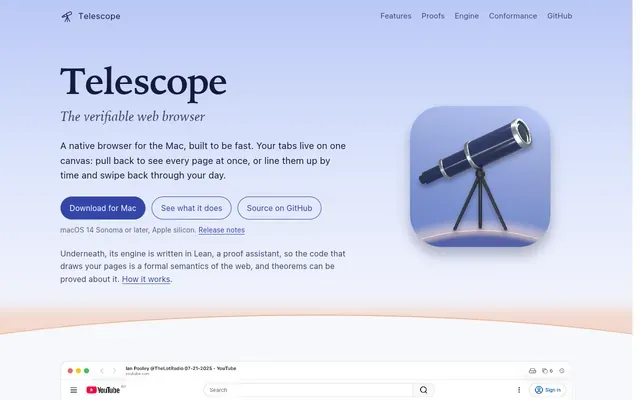
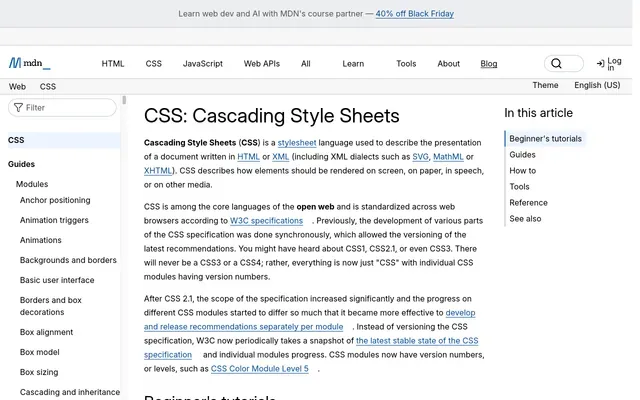
Every tab becomes a card on one canvas. Step back from a page to see them all, and pick one to step back in.
Or line them up by time, the tab you're on in front. Scroll on to swipe back through your day.
-
See every tab at once
Step back from the page you're on and every open tab is there, as a card showing its page. Pick one, or pinch into it, to carry on.
- Open a second window (⌘N) and it looks onto the same canvas, so no tab is stuck in the wrong window.
- Tabs you're not looking at are slowed down, so they don't hold up the one you're using.
- Prefer tabs? View → Show Cards as Window Tabs gives every card a native macOS tab: ⌘1–⌘9 to switch, drag one out into a window of its own, and drop it back to rejoin.
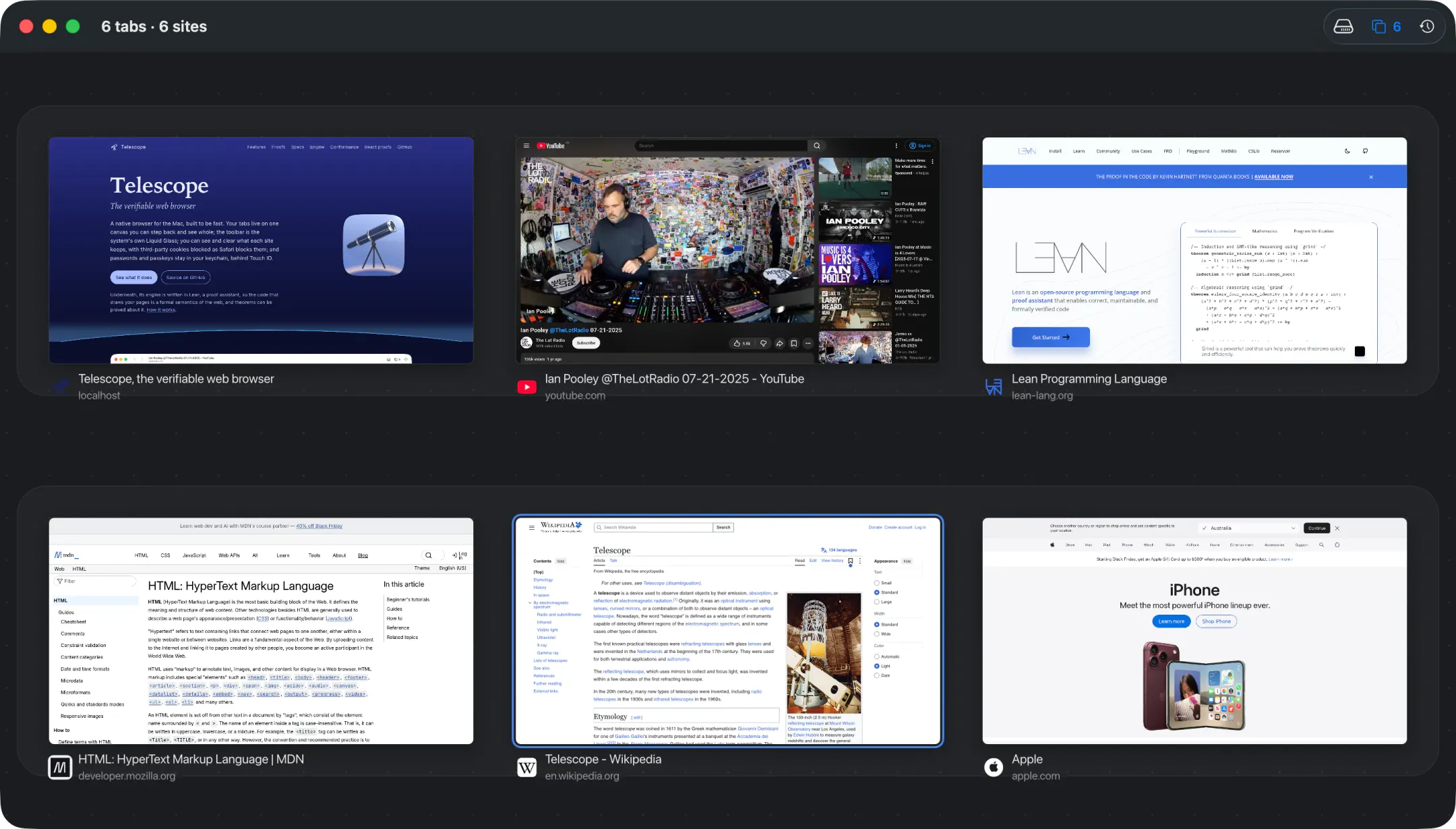
Six open tabs, each a card showing its page. -
Find your way back by time
Line the same cards up in the order you used them. Keep going past your open tabs and the pages you visited earlier follow, as faded cards.
- Swipe a page away to forget it; ⌘Z brings it back.
- History → Don't Record History stops keeping them.
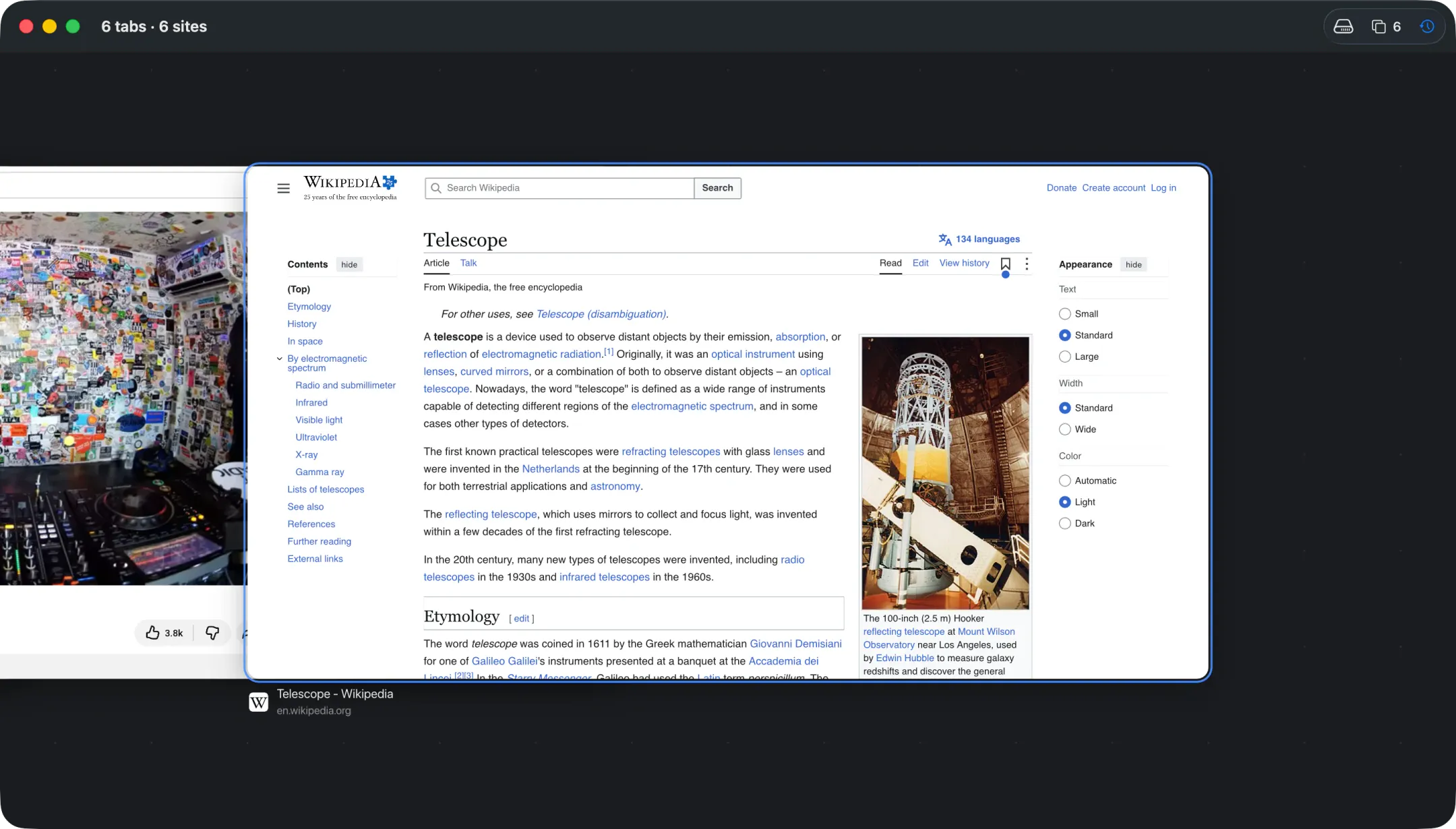
By Time: the tab you're on in front, the others in the order you used them.
Day to day, it stays out of your way.
-
Pages appear quickly
Telescope shows a page as soon as its text, styles and fonts arrive, without waiting for everything else. Each tab runs on its own, so a busy page can't stall the others, and going back puts you where you were, even partway through a video.
-
Watch and listen
Video streams play decoded by your Mac's own hardware, and so do music and live radio. Watch in Picture in Picture or full screen, and use your keyboard's media keys.
Some services that protect their videos with DRM don't play yet.
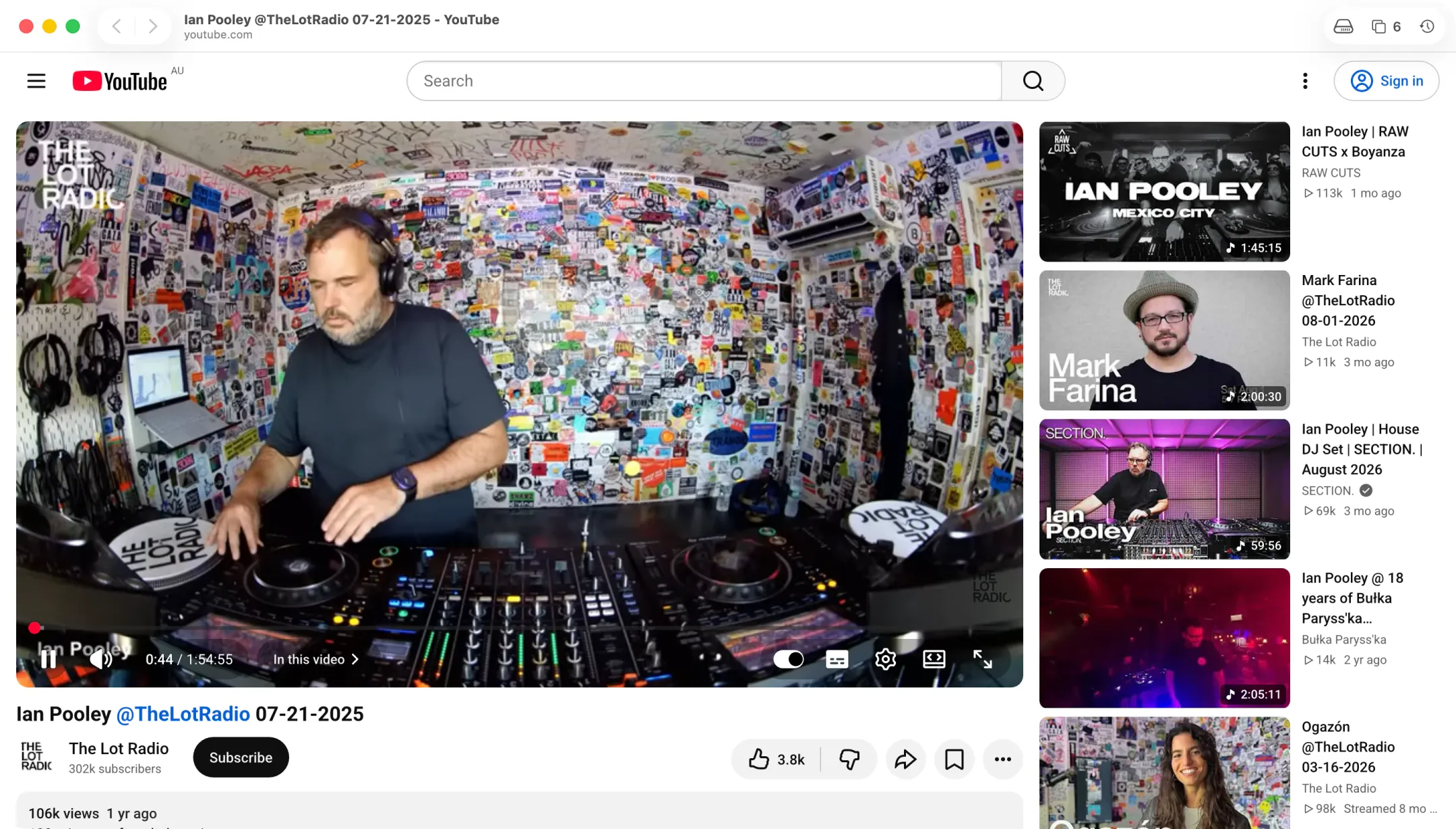
A YouTube video playing in Telescope. -
Write anywhere
Rich-text editors work as you expect, with your keyboard's input methods for other languages, copy and paste that keeps formatting, and forms that check what you type before you send it.
What sites keep about you stays in plain sight.
-
See what each site keeps, and clear it
Click Site Data to see what the site you're on has stored on your Mac (cached files, cookies, local storage, history) and how much room it takes. One click clears it.
- Third-party cookies are blocked, as in Safari.
- Passwords are kept in your login keychain and offered on the sign-in forms they belong to.
- Passkeys work, confirmed with Touch ID.
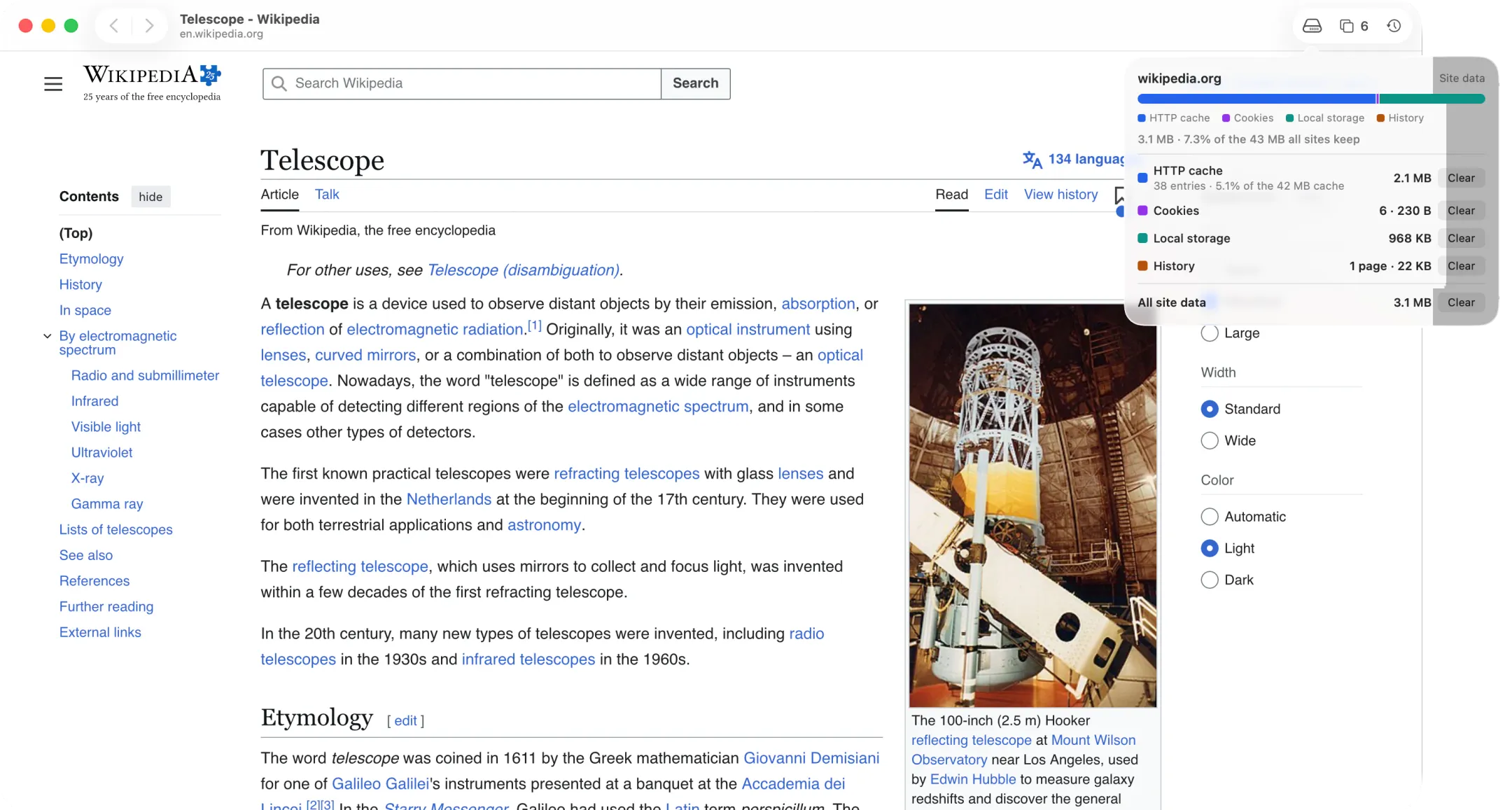
Site Data: what a site keeps, by kind, and the buttons that clear it.
And it feels like it belongs on your Mac.
-
At home on macOS
The toolbar is the system's own, on macOS 26's Liquid Glass. Start typing in the address field and your open tabs come first, then pages you visit often, then a search.
- The menus and keyboard shortcuts you already know.
- Pages follow your light or dark appearance, accent colour and languages.
- Links such as
mailto:open in the right app.
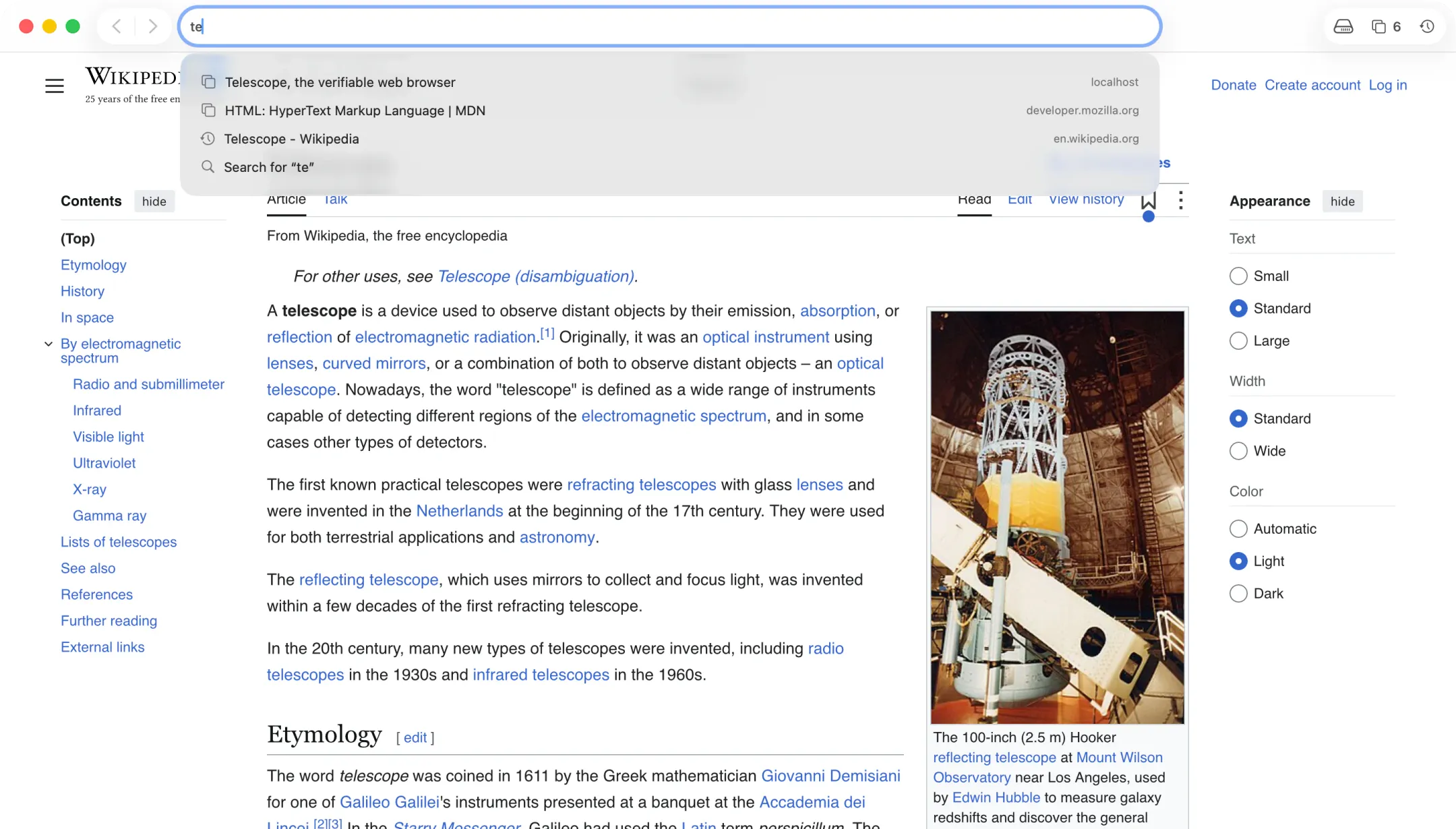
The address field: your open tabs first, then your history, then a search.
What's coming
Telescope is young, and some everyday things haven't arrived yet: downloads, find in page, a context menu, page zoom, a PDF viewer, permission prompts, a settings window, private windows, printing, an inspector and content blocking. The list runs in the order we think you'd miss them. For now, Telescope runs on Macs only.